Remove Backgrounds from Images
Drop images here or paste (Ctrl+V)
Drop images here or paste (Ctrl+V)
Max 200 images


AI-powered removal
Remove backgrounds quickly and accurately.
HD downloads
Save your images in HD for free.
No watermark
Try background removal for free, with no watermarks.
Refine your cutout
Erase leftover background or restore parts you want to keep.
AI background remover for clean cutouts and easy editing
Get your images ready to use, with less manual work along the way.Remove image backgrounds instantly with AI
Upload your image, whether it’s a portrait, product photo, or graphic, and the AI image background remover automatically selects a suitable model to remove its background. You get a transparent PNG without having to trace around the subject yourself.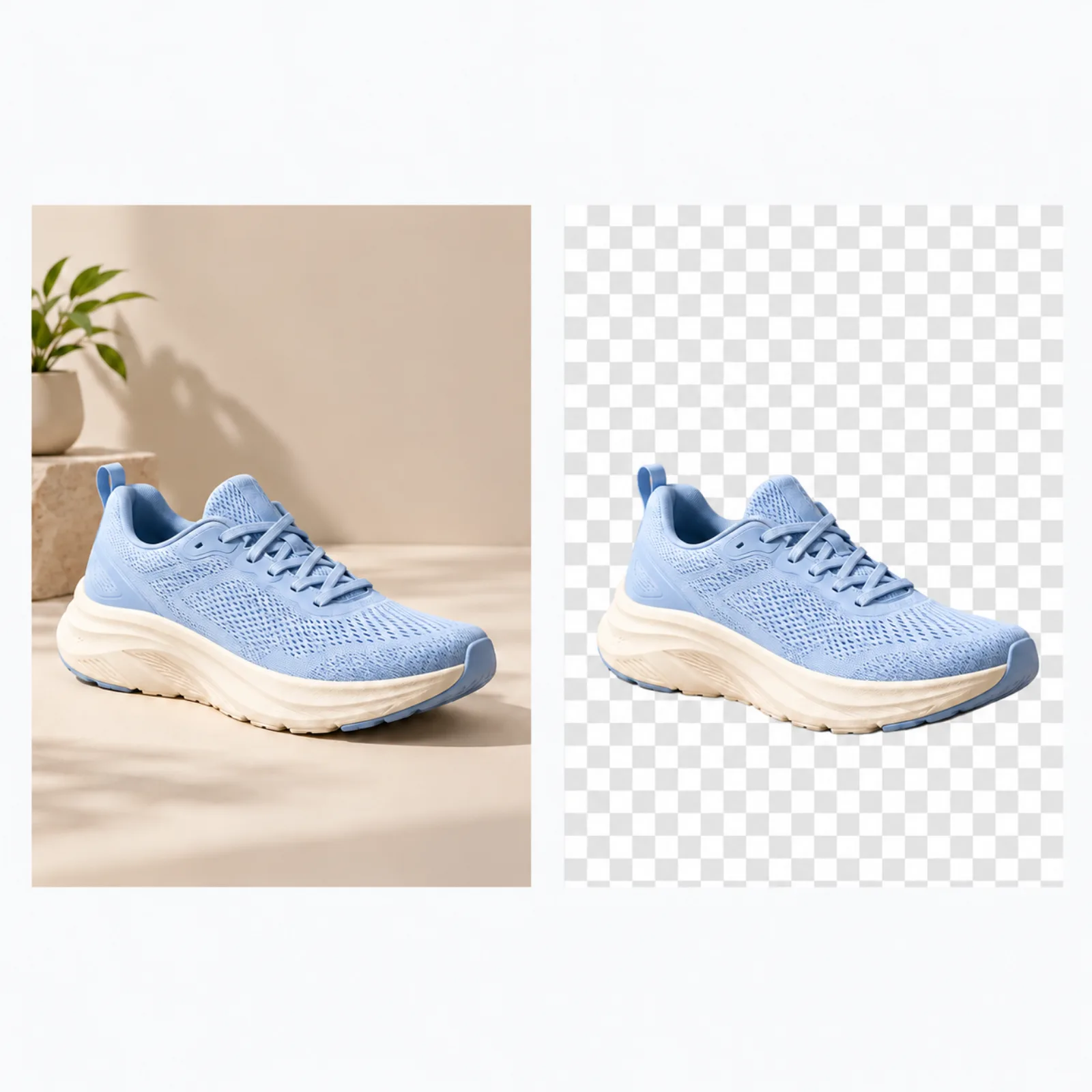
Clean cutouts with natural edges
Artguru’s AI tool precisely removes backgrounds while preserving fine details around hair, fur, and product outlines, along with the subject’s original colors and patterns. For occasional touch-ups or more specific edits, the background eraser and restore brush let you fine-tune what to remove or keep.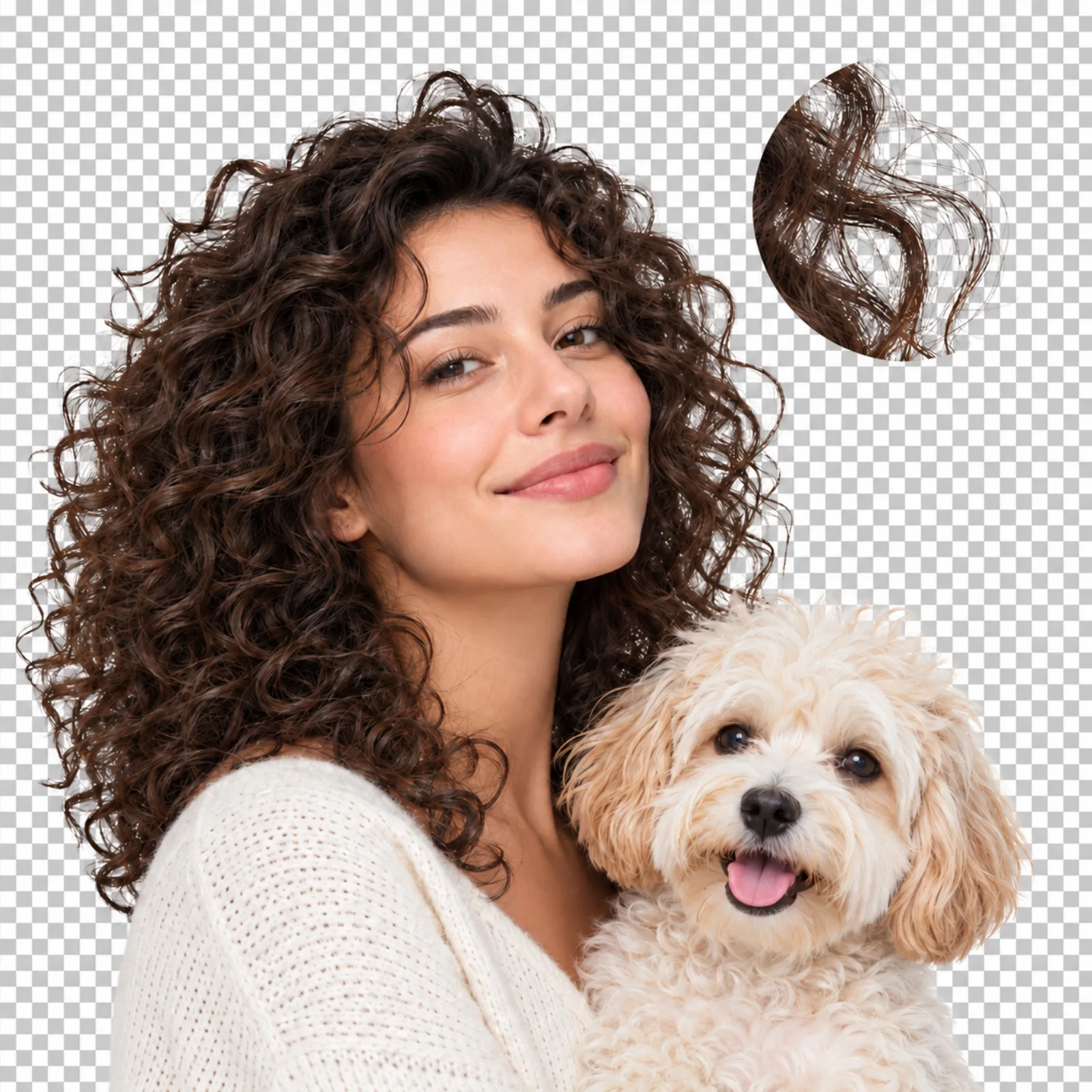
Keep editing after you remove the background
Artguru’s background remover lets you keep editing your photo without switching tools. Crop it to the proportions you need, fine-tune brightness, contrast, and saturation, or try a black-and-white look. You can also replace the background with a photo from the library, your own image, or a solid color. If your photo needs more clarity or a higher resolution for printing, the image upscaler can enhance and enlarge it.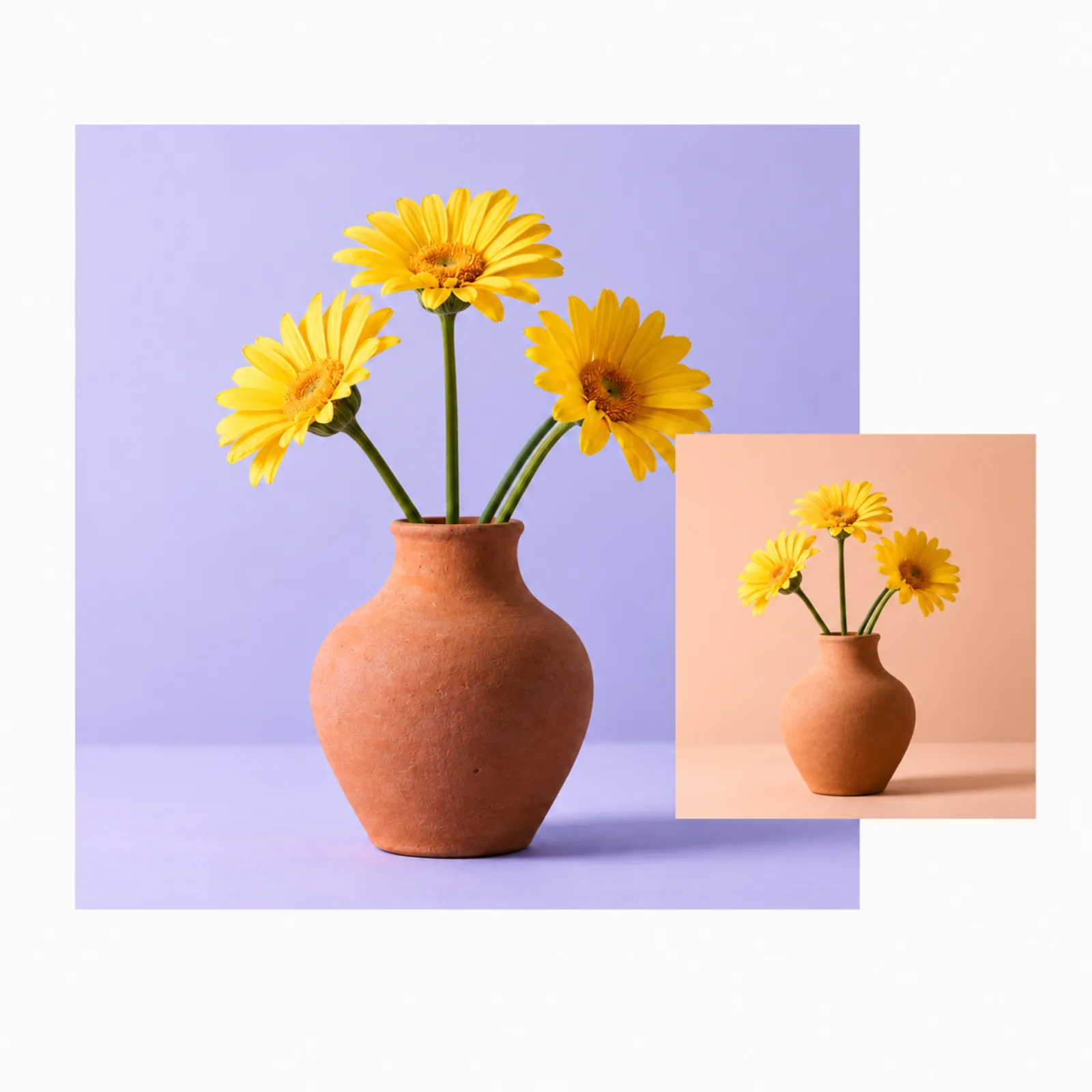
How to remove backgrounds from images online
Step 1. Upload your images
Select one or more images from your device, or drag and drop them onto the page. Common formats such as JPG, PNG, and WEBP are supported.Step 2. Remove the background
AI removes the background automatically, usually in just a few seconds. Zoom in to check for leftover background pixels or parts of the design you want to restore.Step 3. Customize or download
Save the transparent PNG right away, or make a few edits before saving. Touch up the cutout, crop, adjust colors, or add a new background as needed.Remove backgrounds with ease, from photos to graphics
Artguru’s background remover works precisely across a wide range of images, making them easy to use in business, creative work, and personal projects.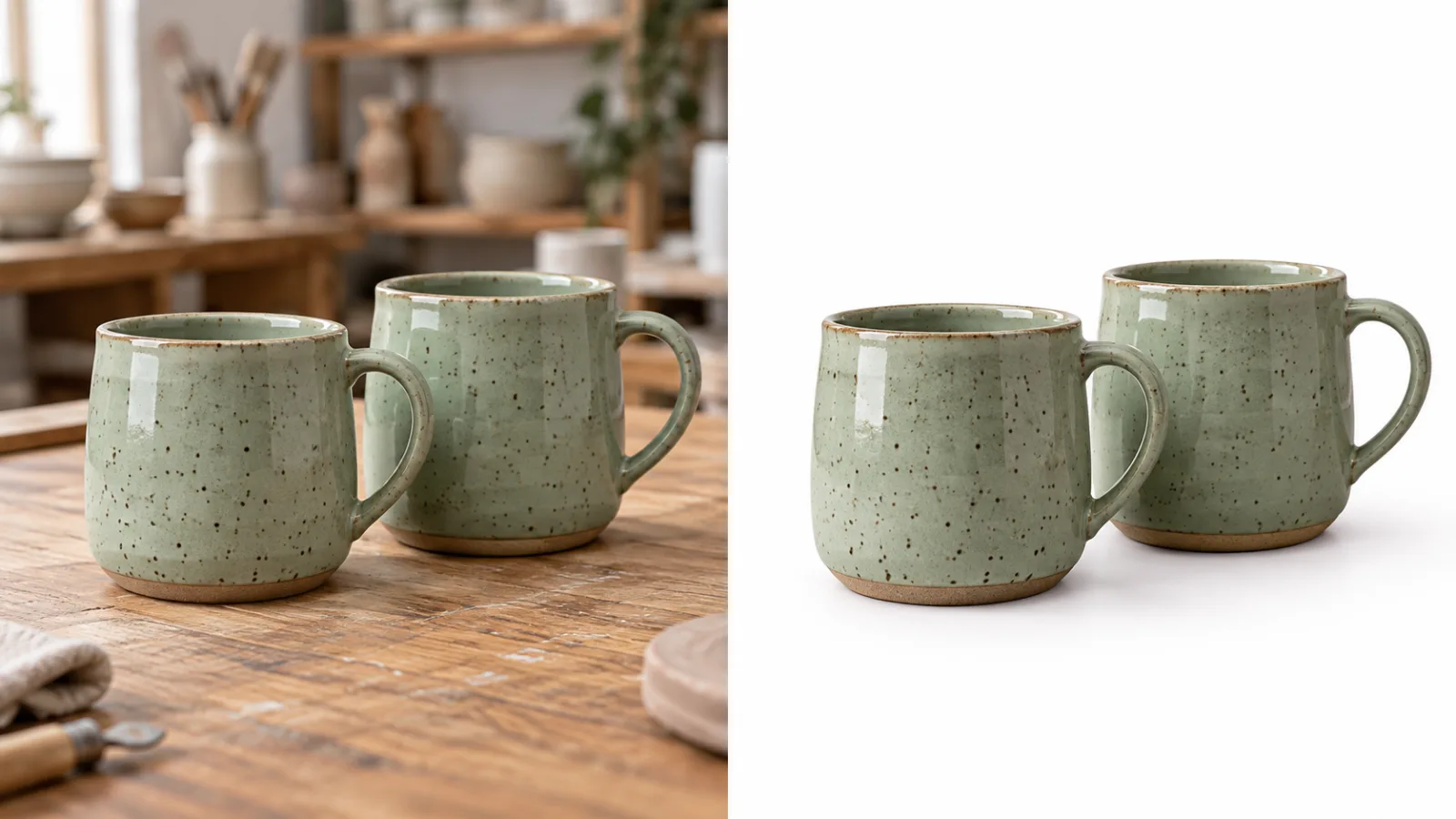
Product photos
Remove backgrounds from product photos in batches while preserving product details, colors, and patterns. Add a clean white background for a consistent look across your store listings.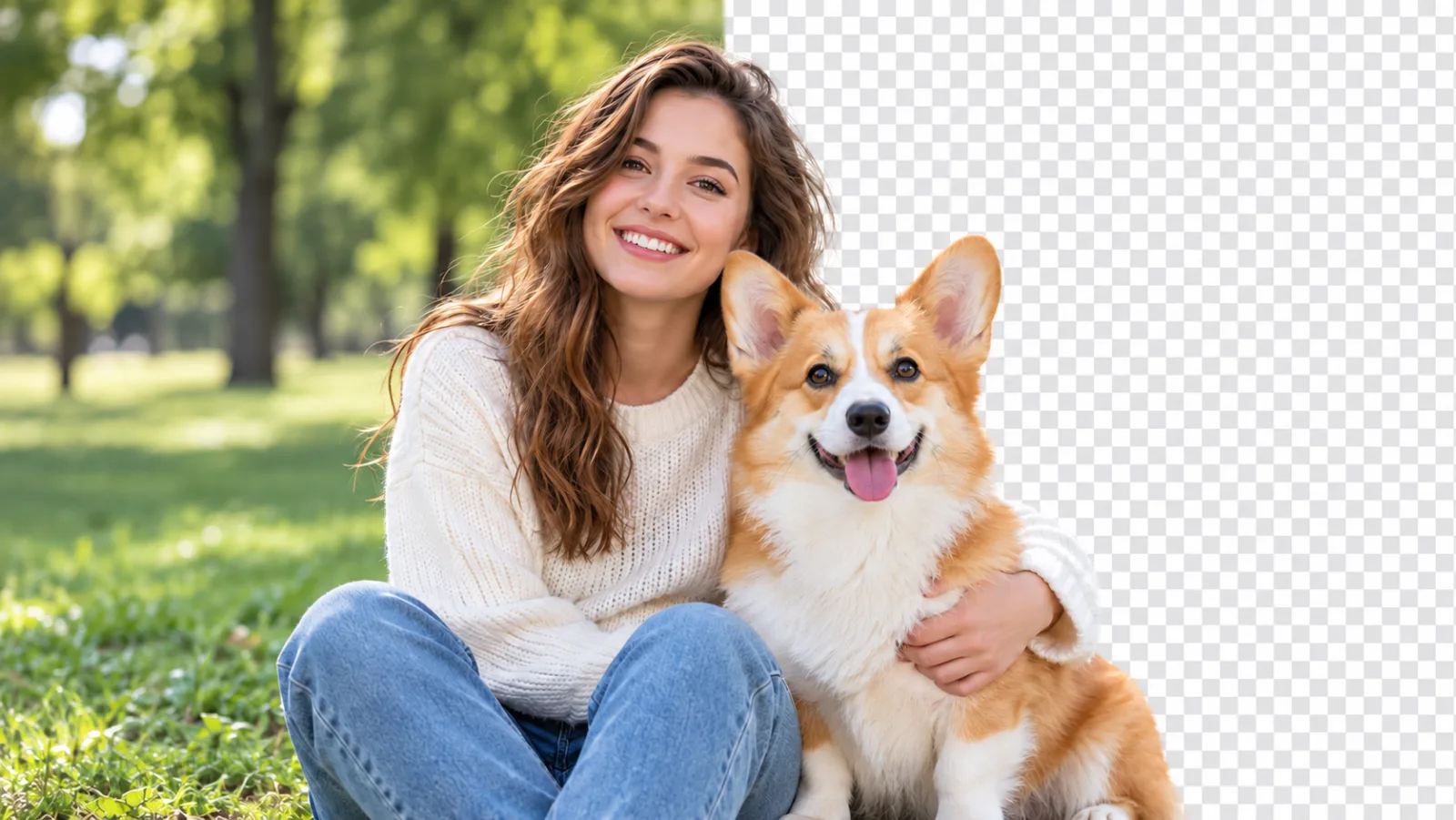
People and animals
Get natural-looking cutouts from portraits and animal photos, with clean edges around the subject. Replace a distracting backdrop with one that suits your project.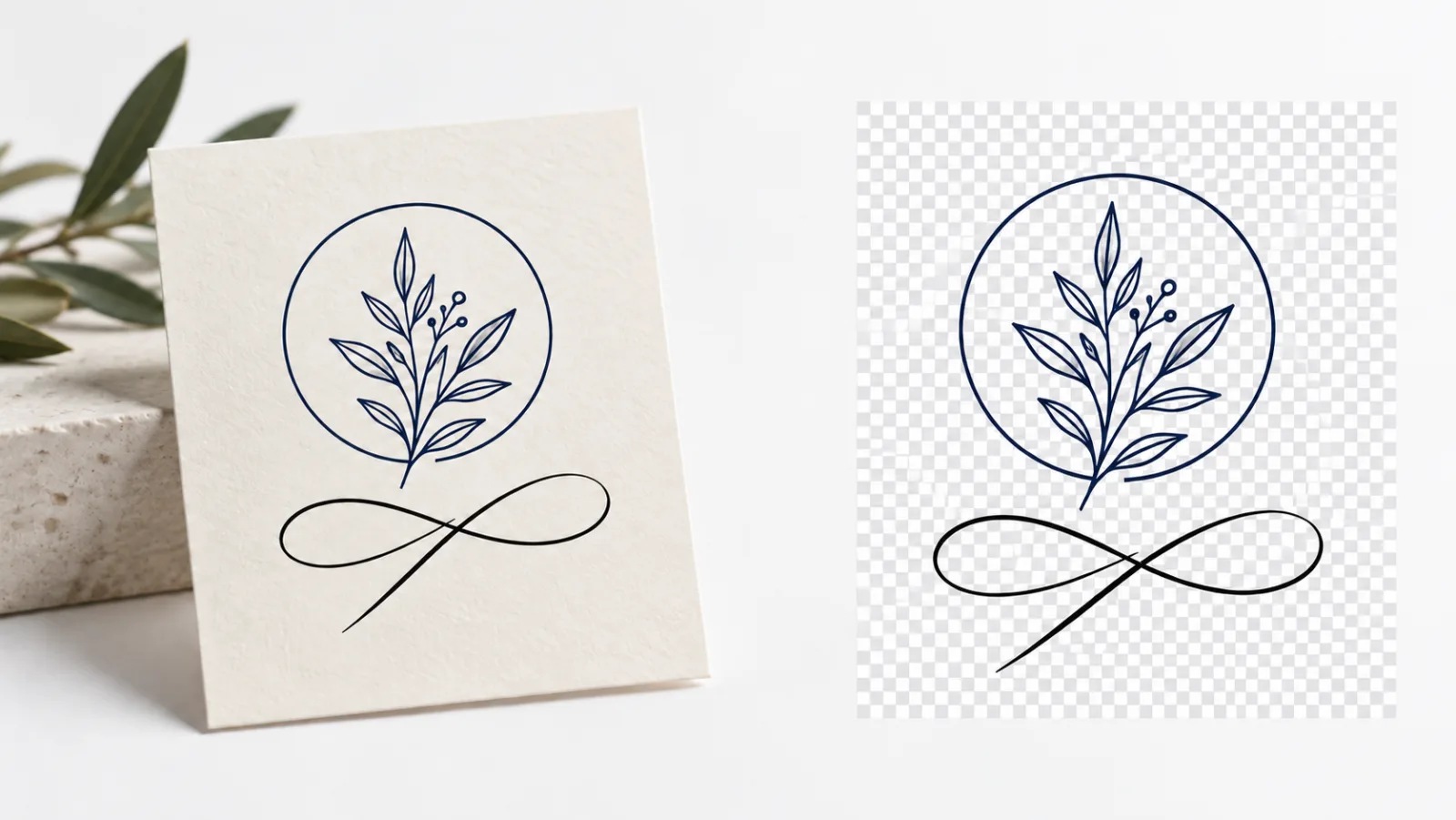
Logos and graphics
A transparent background makes logos, scanned signatures, illustrations, and other graphics easier to reuse. Save them as PNGs to place into documents, packaging, posters, or new layouts without an unwanted background around them.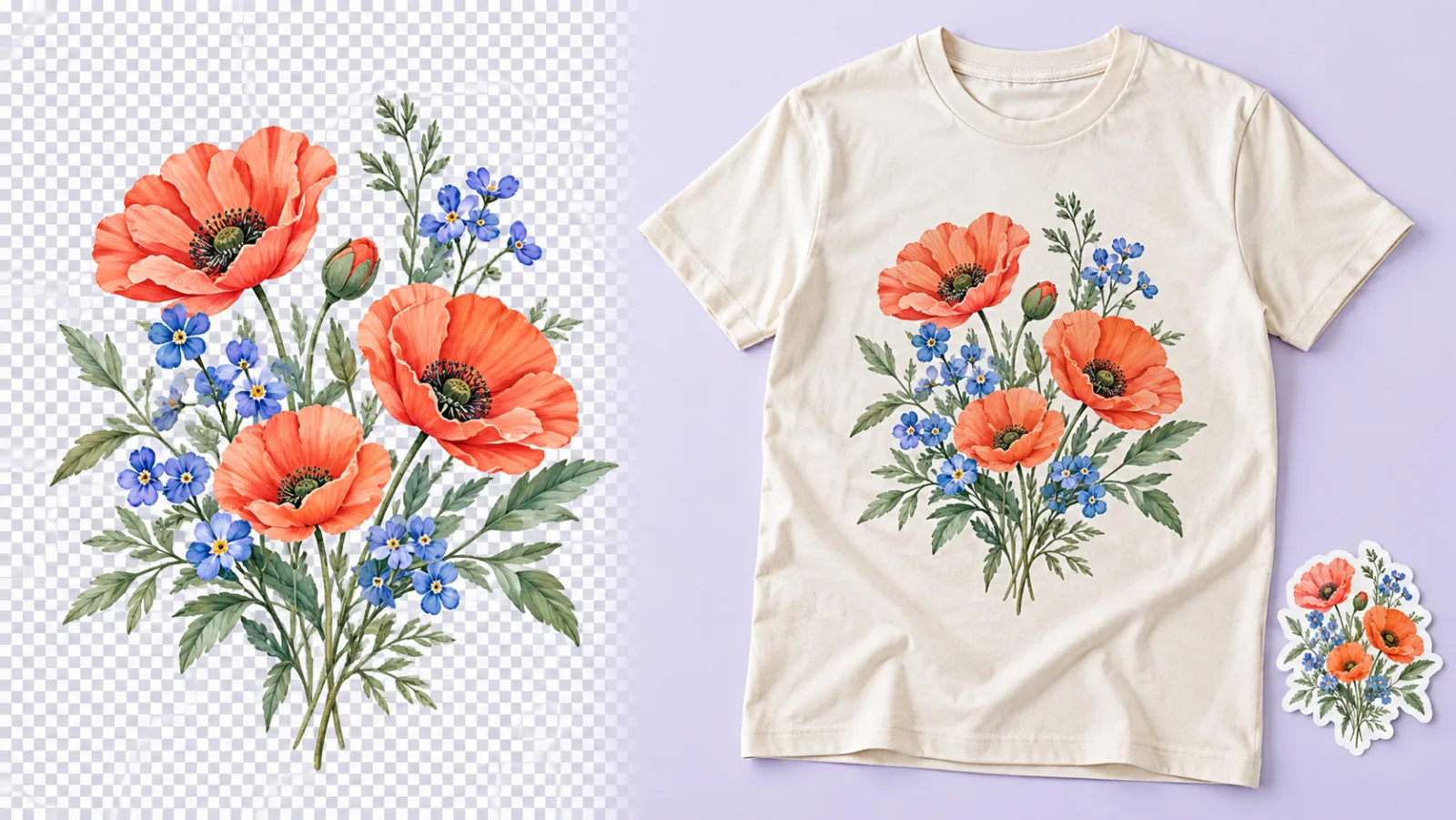
Designs for print
Remove backgrounds from artwork for T-shirts, stickers, and other print-on-demand products. A transparent PNG lets your design stand on its own, without a background box around it.Batch background removal for larger image sets
Artguru’s bulk background remover lets you process multiple images in a single online batch. Once the backgrounds are removed, you can review the results, open any image for further editing, and download the full set as a ZIP with the original file names preserved. To automate background removal in your own workflow, use the Artguru API to send images from your website, app, or internal system and retrieve the finished files.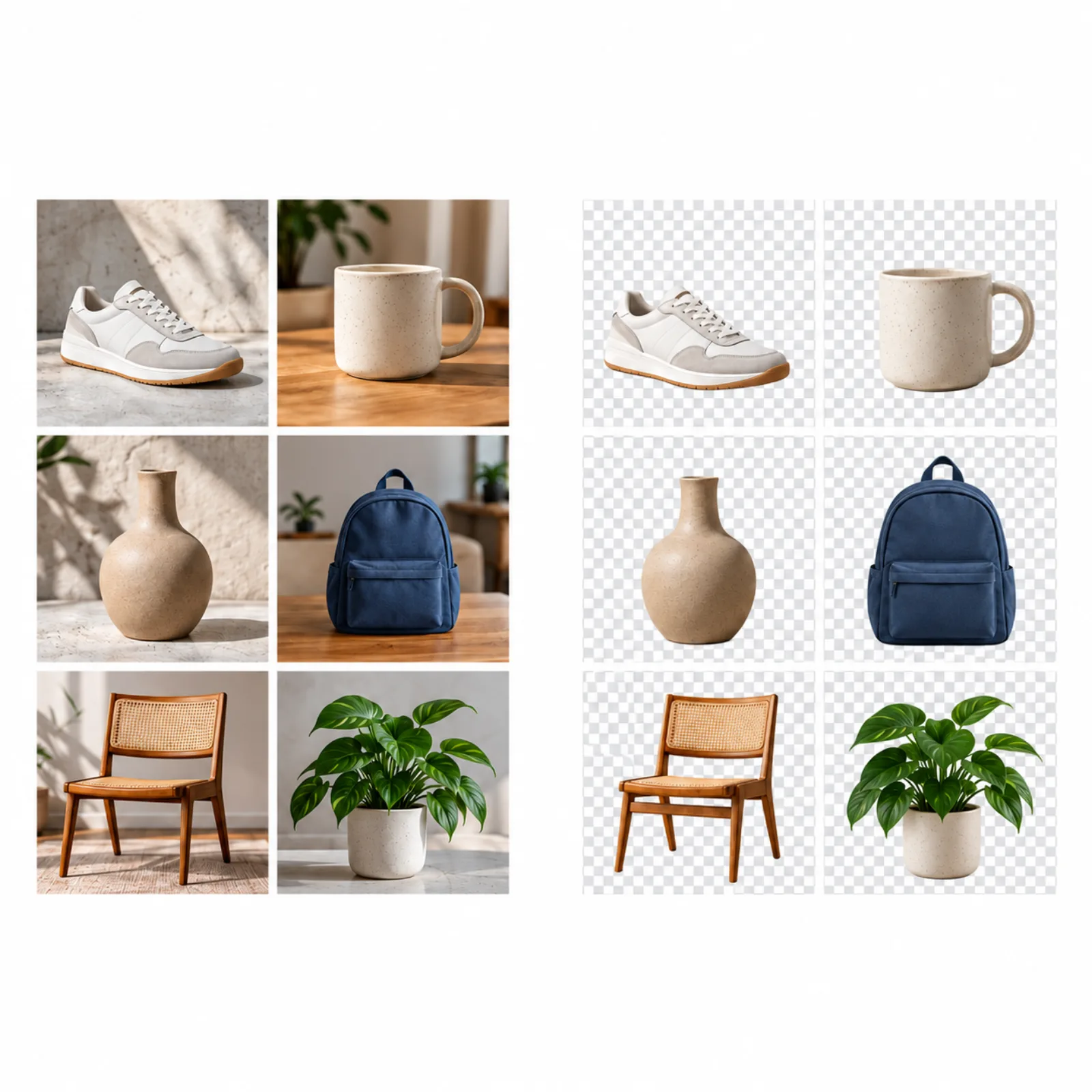
What people say about Artguru's background remover
Print-on-Demand ApparelDTF Shop Owner
Photo Printing & FramingPhoto Retoucher
Handmade E-commerceEtsy Shop Owner
Discover More AI Tools
Background Remover FAQs
Have more questions? Contact support@artguru.ai.